
How to Extract a Color Palette from a Photo, Step by Step
Turn any photo into a ready-to-use color palette, with HEX and RGB codes, in a few clicks. A step-by-step tutorial with screenshots using Mappum.

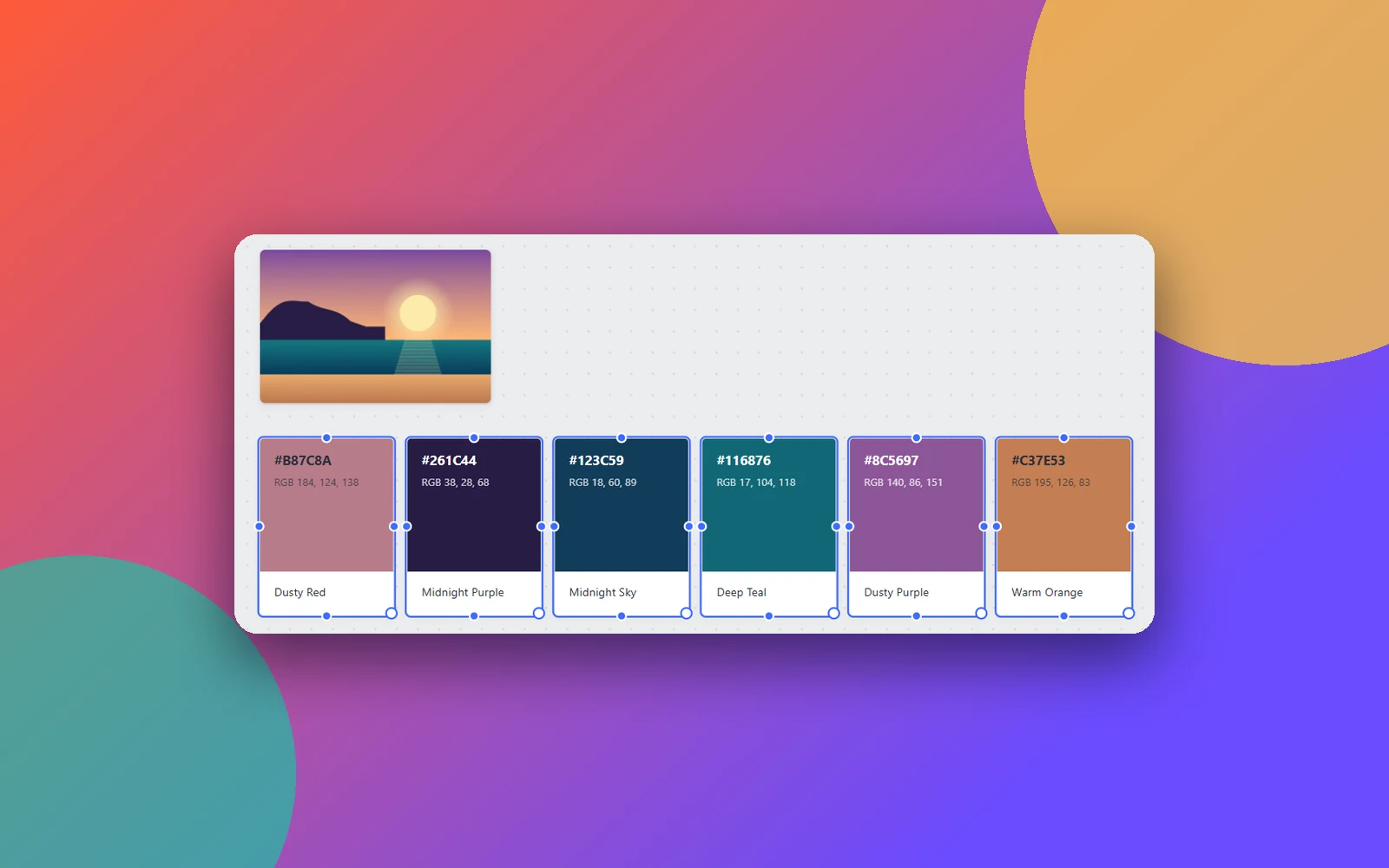
That photo with exactly the mood of your project already contains the color palette you are looking for. In this tutorial you will turn an image into color cards, with HEX and RGB codes ready to copy, using Mappum.
Why start a palette from a photo
Picking colors "by eye" often produces combinations that don't talk to each other. A reference photograph, illustration or painting already brings colors that work together, because they appear in the same scene, under the same light. Extracting the palette from that image is a shortcut to a coherent look in brand identity, illustration, interface design or decor.
What you will need
- A reference image on your computer.
- Access to Mappum at mappum.com/app. You can try it without an account: on the entry screen, choose Continue as guest. A guest board is temporary and may be lost when you refresh the page; to keep your maps, sign in with Google or email.
Note: the screenshots below show the Portuguese interface. The button names in the text are the ones you will see in English.
Step 1: open a board and add the photo
Create a new board. In the toolbar on the left, click Image and choose the photo from your computer. You can also drag the image onto the board or paste it with Ctrl+V.
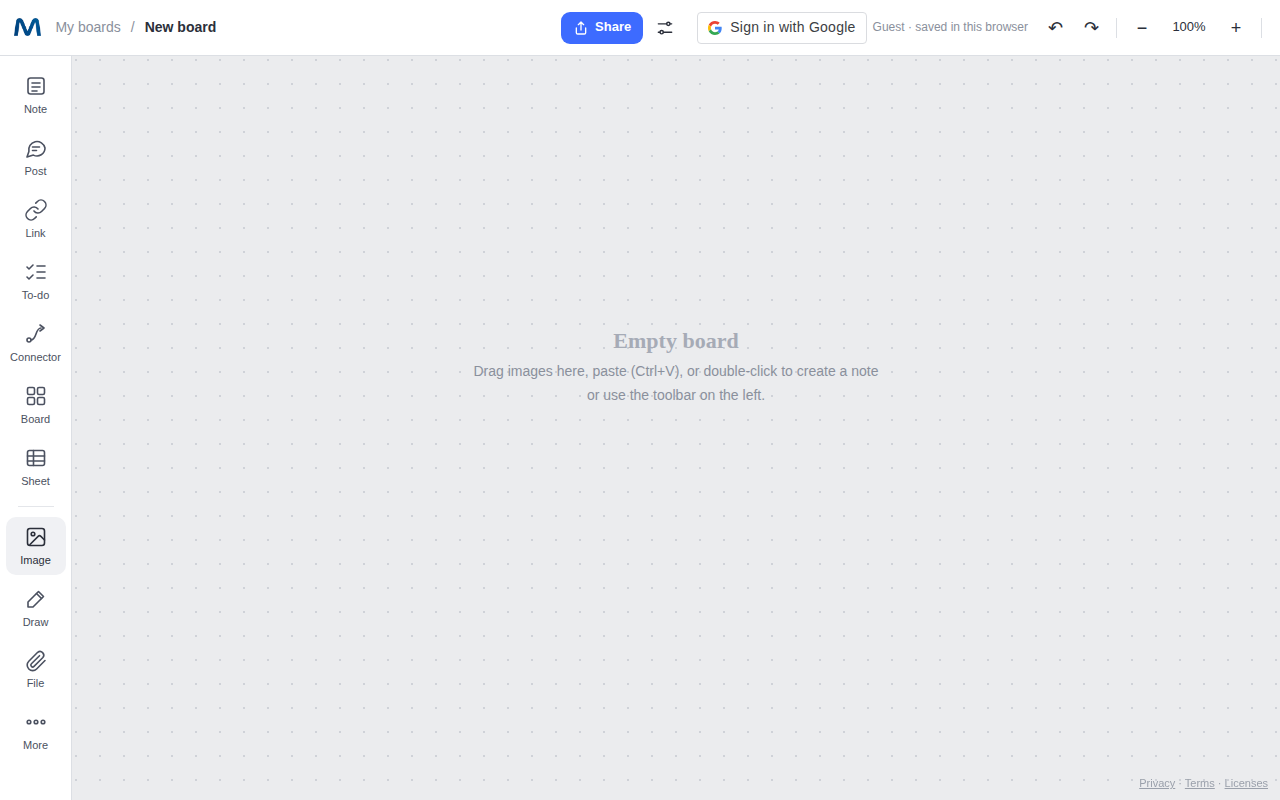
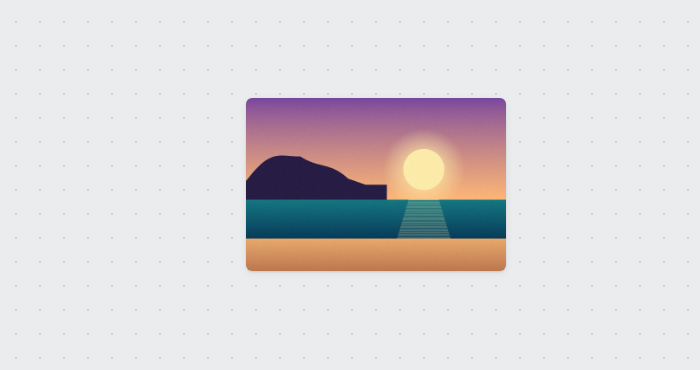
Mappum automatically converts the image to WebP, making the file much smaller and keeping the board light, even with many references.
Step 2: select the image
Click the photo once. It gets a blue outline and, at the top of the screen, an options bar appears with Description, Crop, Extract palette and Frame.
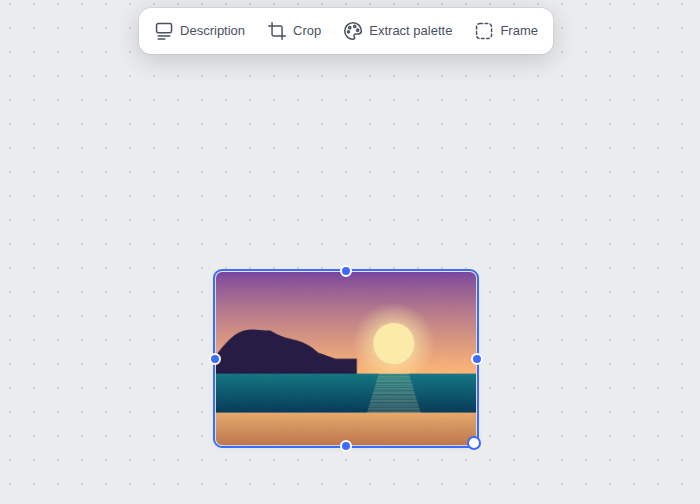
Step 3: click "Extract palette"
With the image selected, click Extract palette. In an instant Mappum creates color cards right below the photo and tells you how many colors it found. In this sunset photo it found 6.
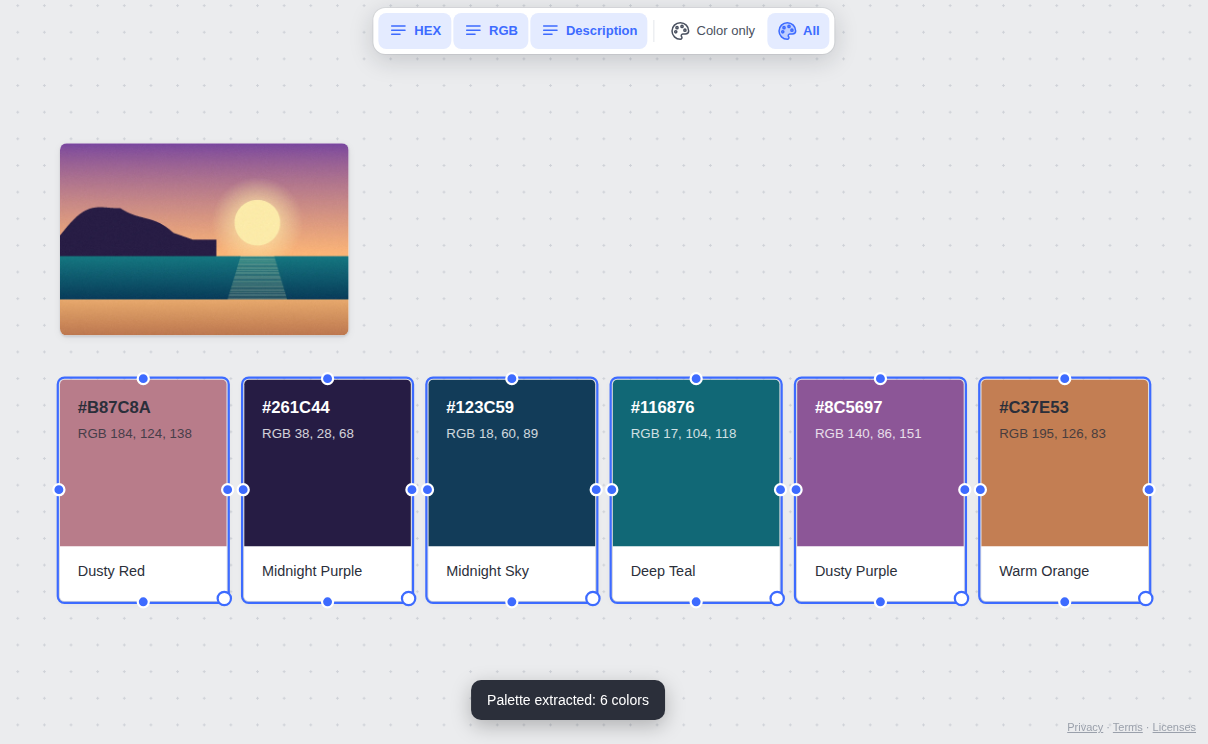
Each card shows the HEX code, the RGB value and a suggested color name (in English). In this example:
- #B87C8A — Dusty Red
- #261C44 — Midnight Purple
- #123C59 — Midnight Sky
- #116876 — Deep Teal
- #8C5697 — Dusty Purple
- #C37E53 — Warm Orange
While the cards are selected, the top bar lets you choose what appears on them: HEX, RGB, Description, Color only or All.
Step 4: copy the color code
Hover over a card and click the copy button (⧉) in the corner of the color swatch. A "Copied: #B87C8A" message appears and the code is on your clipboard, ready to paste into Figma, Photoshop, CSS or wherever you need it.
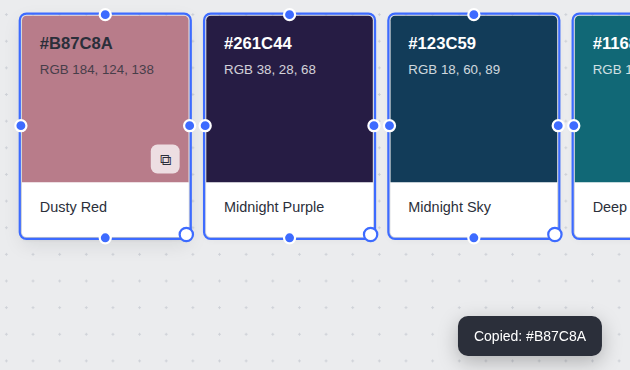
Want to tweak a color? Double-click the card to pick another one.
How to make good use of the extracted palette
Having the codes is only the beginning. A few practical rules:
- Choose 3 to 5 colors. Six is already a lot for most projects; drop the ones that don't help.
- Define roles. One dominant color, one supporting color and one accent. The others are for details.
- Test the contrast. Light text on a dark background, like the purple #261C44, usually reads better than two mid-tones side by side.
- Keep it next to the reference. Leave the photo and the cards on the same board: when you come back to the project, you know where each color came from.
Try it now: open Mappum at mappum.com/app, continue as guest, drag one of your photos onto the board and click Extract palette. It takes less than a minute.
Quick questions
Do I need an account to extract the palette?
No. You can use it as a guest. Just remember that a guest board is temporary; sign in with Google or email to keep your work.
Can I use any image?
Yes, any image you add to the board: photos, illustrations, screenshots or reference artworks. The result depends on the predominant colors of each image.
How many colors does Mappum extract?
It depends on the image: it picks the most representative colors and discards nearly identical shades. In this photo it found 6.