How to Create a Task List with Deadlines in Mappum
Build task lists on your board, check off what is done and set a day and time deadline on each item. Tutorial with screenshots.

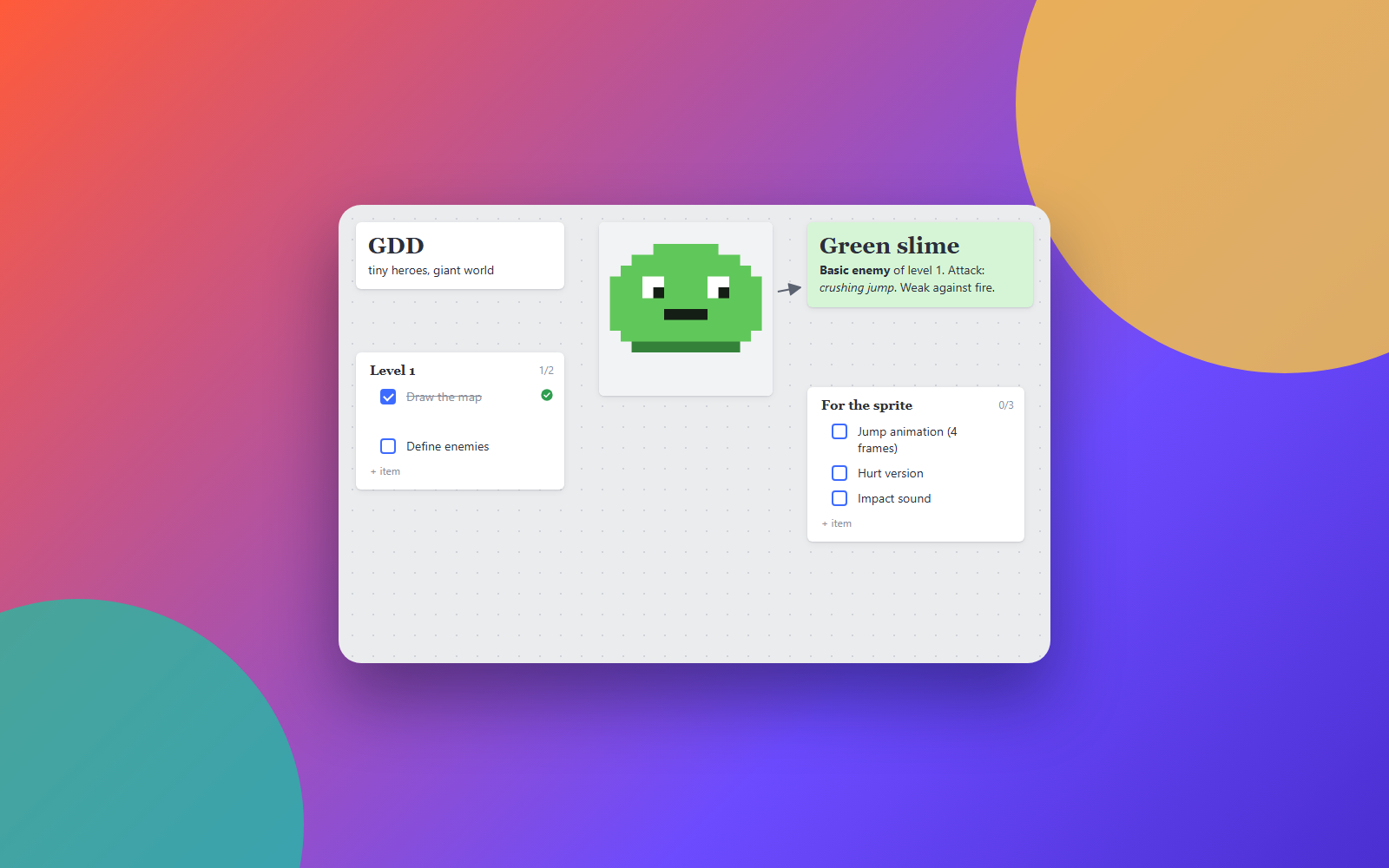
Good ideas need to become tasks. In Mappum, the task list lives on the same board as your notes and references, with deadlines, completed items and even a history.
Why keep the list on the board
Instead of switching between your idea map and another app, you put the tasks next to what originated them. You can connect the list to a note with an arrow, group everything from one phase or share the whole board.
Step 1: create the list
In the left toolbar, click To-do. The list appears on the board with the first item ready to type.
Step 2: name it and write the items
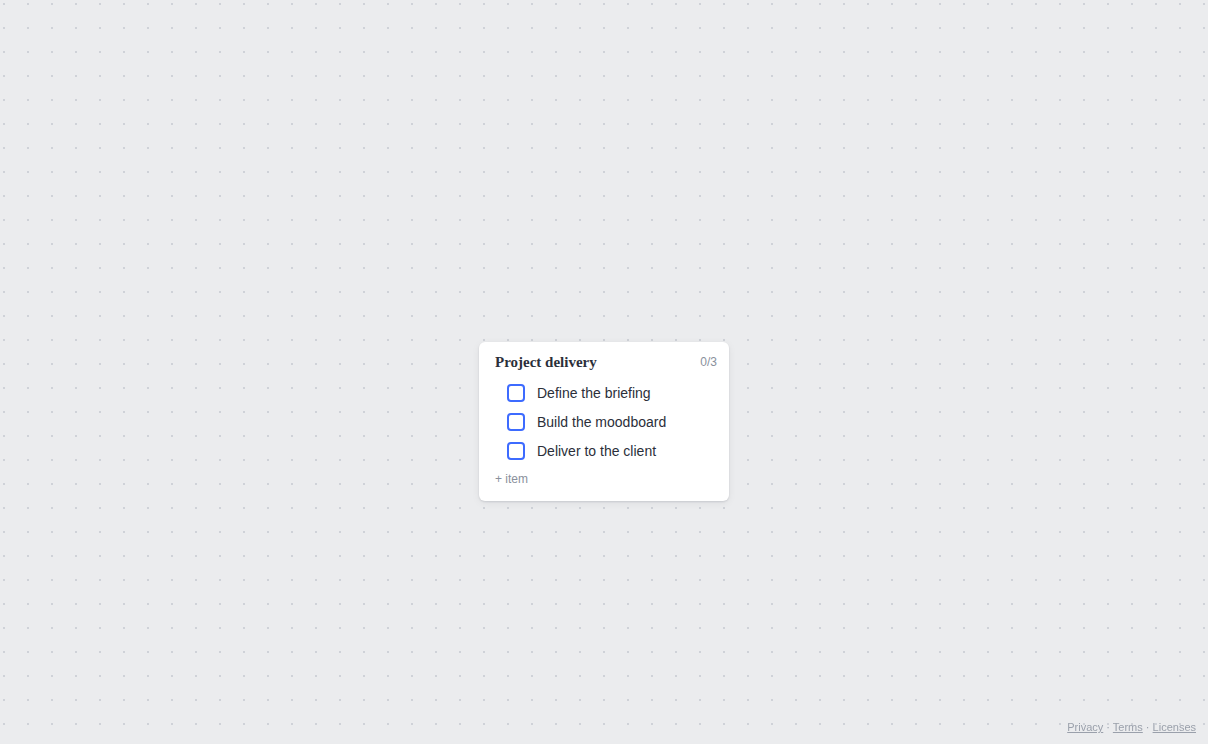
Click the title to name the list. Write the first item and press Enter to create the next one. The counter in the corner of the list shows how many items are done.
Step 3: check off what is done
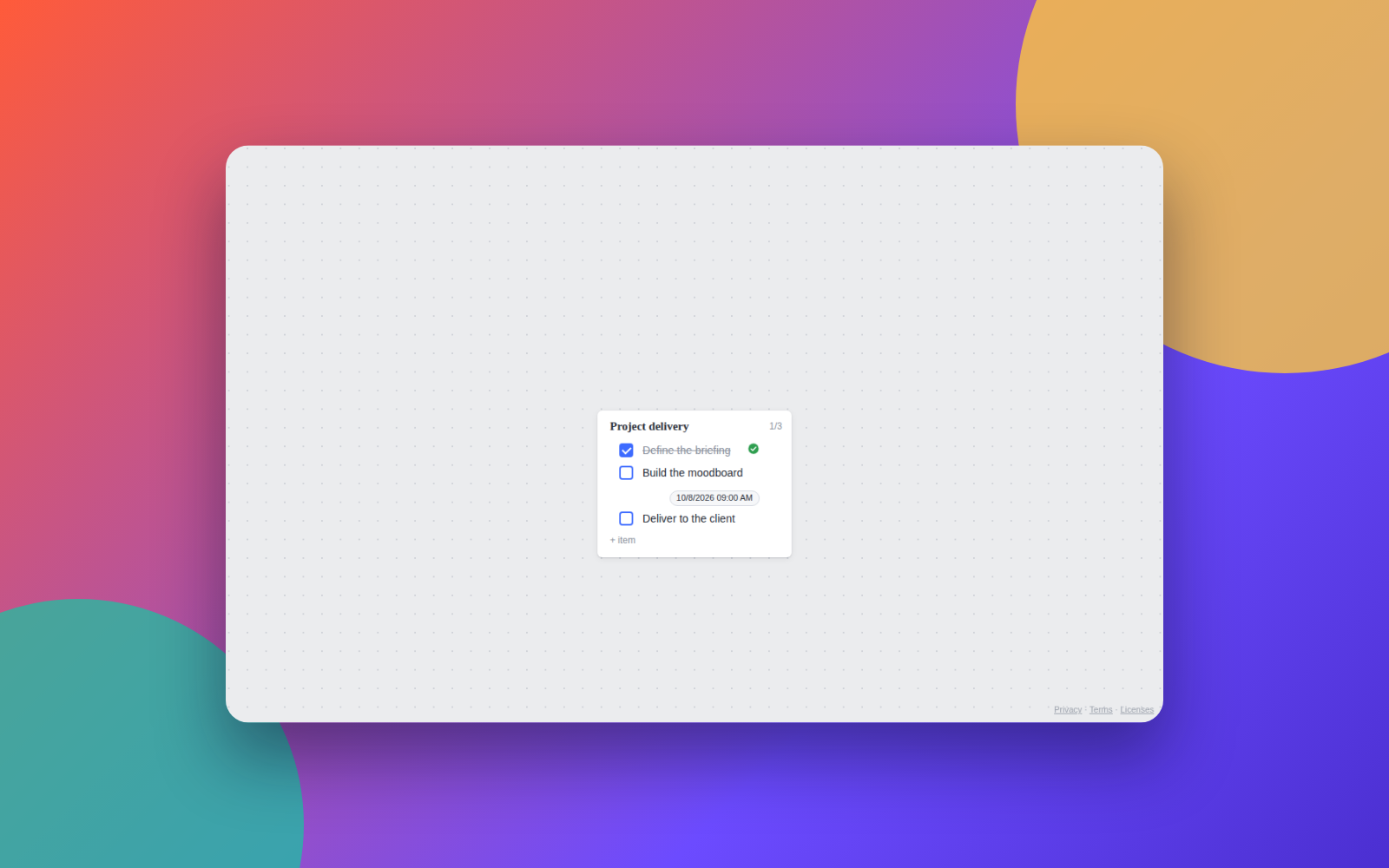
Click the box next to the item. It is marked as done and the counter advances.
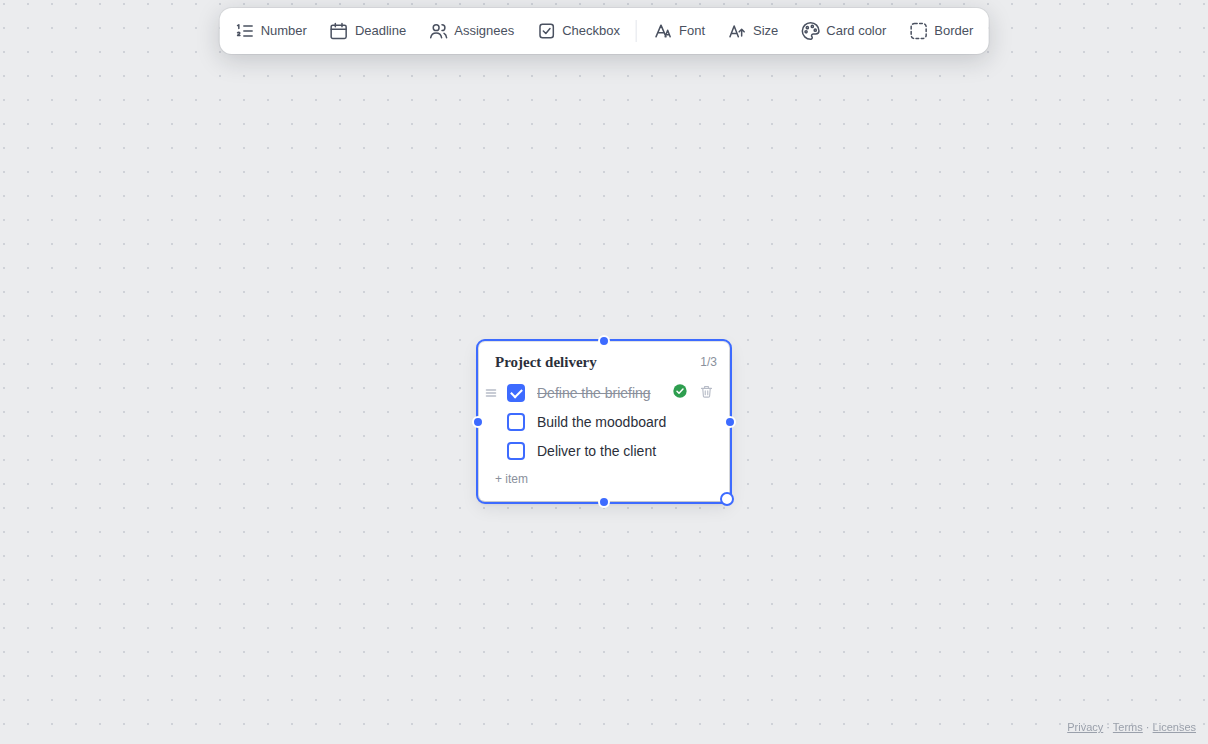
Step 4: set a deadline
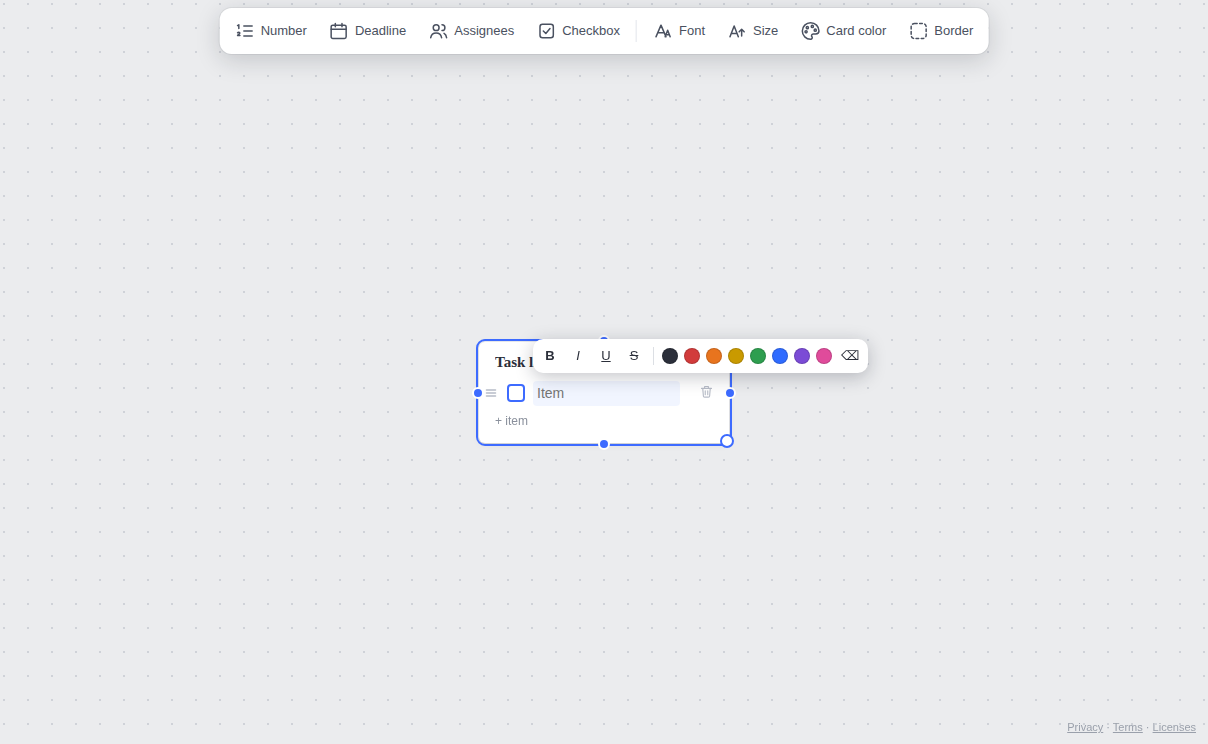
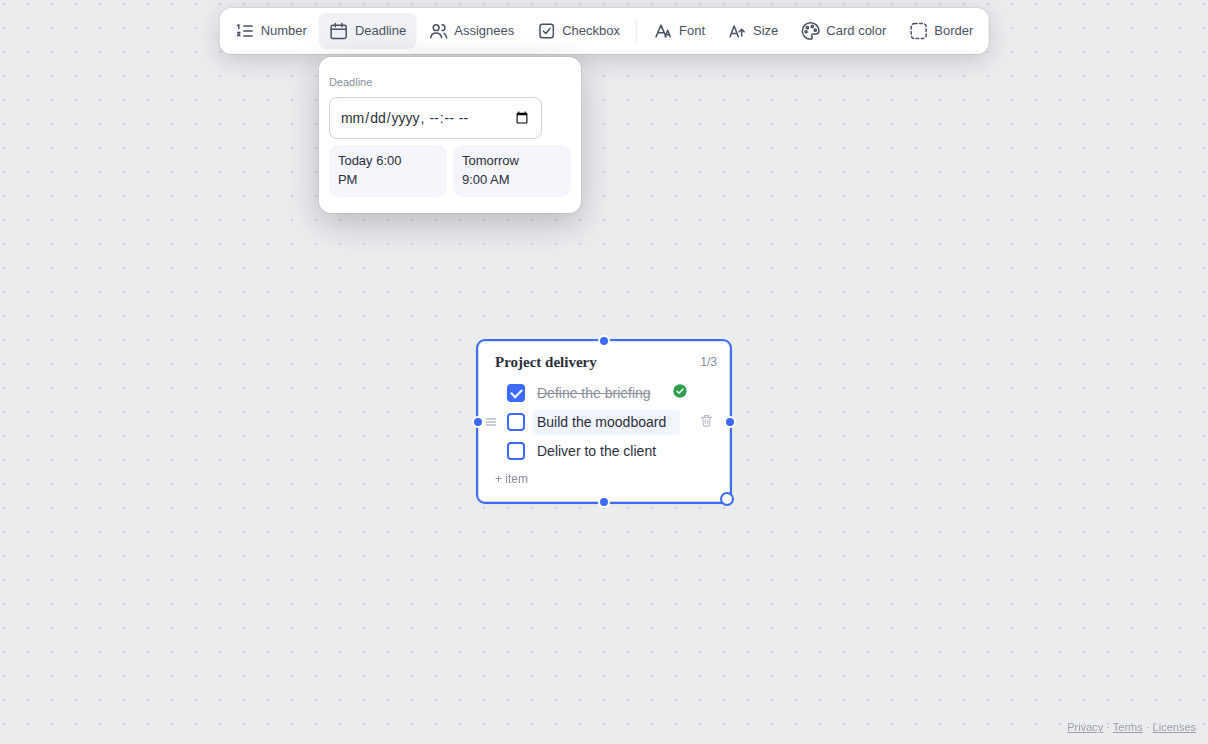
Click the item that will have a deadline. In the bar that appears at the top, click Deadline. You can pick an exact day and time or use the shortcuts Today 6:00 PM and Tomorrow 9:00 AM.
Step 5: the deadline shows on the item
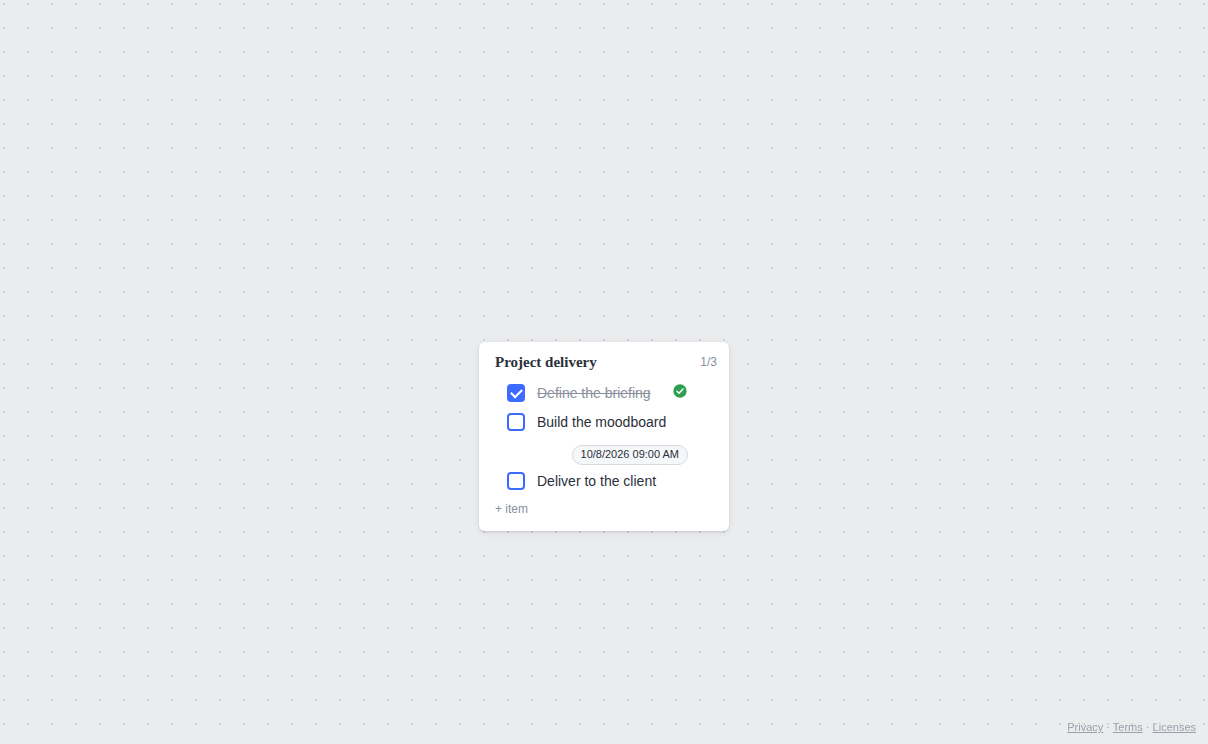
After you choose, the deadline appears next to the item. To remove it, open the panel again and use Remove deadline.
More list features
- Reorder: drag an item by the three-bar handle on its left to change the order. Dropping outside the list turns the item into a note, and dropping onto another list moves the item there.
- Delete: the trash icon next to each item removes only that item.
- Number: the Number button in the top bar shows 1., 2., 3. on the items.
- Assignees: on shared boards, the Assignees button tags who is involved in each item.
- Task history: when signed in, the account menu has Task history, a monthly calendar of everything you completed, day by day.
Tip: connect the list to the note that started the work with an arrow. When you come back to the board, you can see where each task came from.
Quick questions
Is the history lost if I delete the list?
While signed in, completed tasks stay saved in the history even if the list or the board is deleted. You can delete each history entry whenever you want.
Do I need an account?
To create and use lists, no: continue as a guest at mappum.com/app. A guest board is temporary; sign in with Google or email to keep your work and use the history.