Mappum MCP: connect Claude and other AI assistants to your boards
Let Claude or another AI read, organize and edit your Mappum boards. Step-by-step setup, permissions, safety and example prompts.

What if your AI could open your board, read the ideas you have already gathered and carry on from where you left off? With Mappum MCP, that works for Claude and for any other compatible AI app.
What is Mappum MCP?
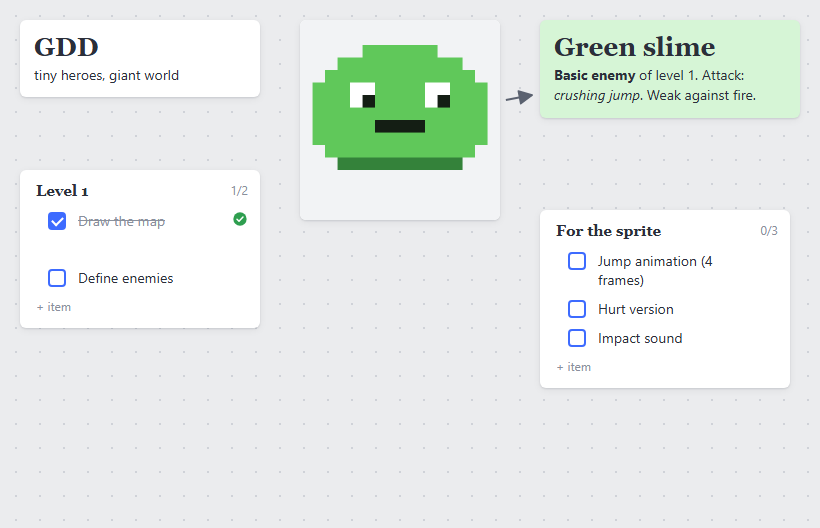
MCP (Model Context Protocol) is an open standard that lets AI apps connect to other services safely. Mappum has its own MCP server: once connected, your AI agent can see your boards and create and edit cards (notes, links, to-do lists, tables, images and files) as if it were one more person working with you.
It works on any plan, including the free one. All you need is a Mappum account.
Why connect your AI to Mappum?
- Context at hand: the AI reads your moodboard, brief and references instead of you pasting everything into the chat.
- From chat to board: a brainstorming session with the AI becomes organized notes, with no rework.
- Autopilot organization: ask it to group ideas by theme, create to-do lists or build a table comparing options.
- Code and game projects: Claude Code can send sprites, concepts and project notes straight to your board.
- You stay in control: you choose whether the AI only reads or also edits, and you can restore a copy from before its changes.
What the AI can do
- list your boards and open any of them;
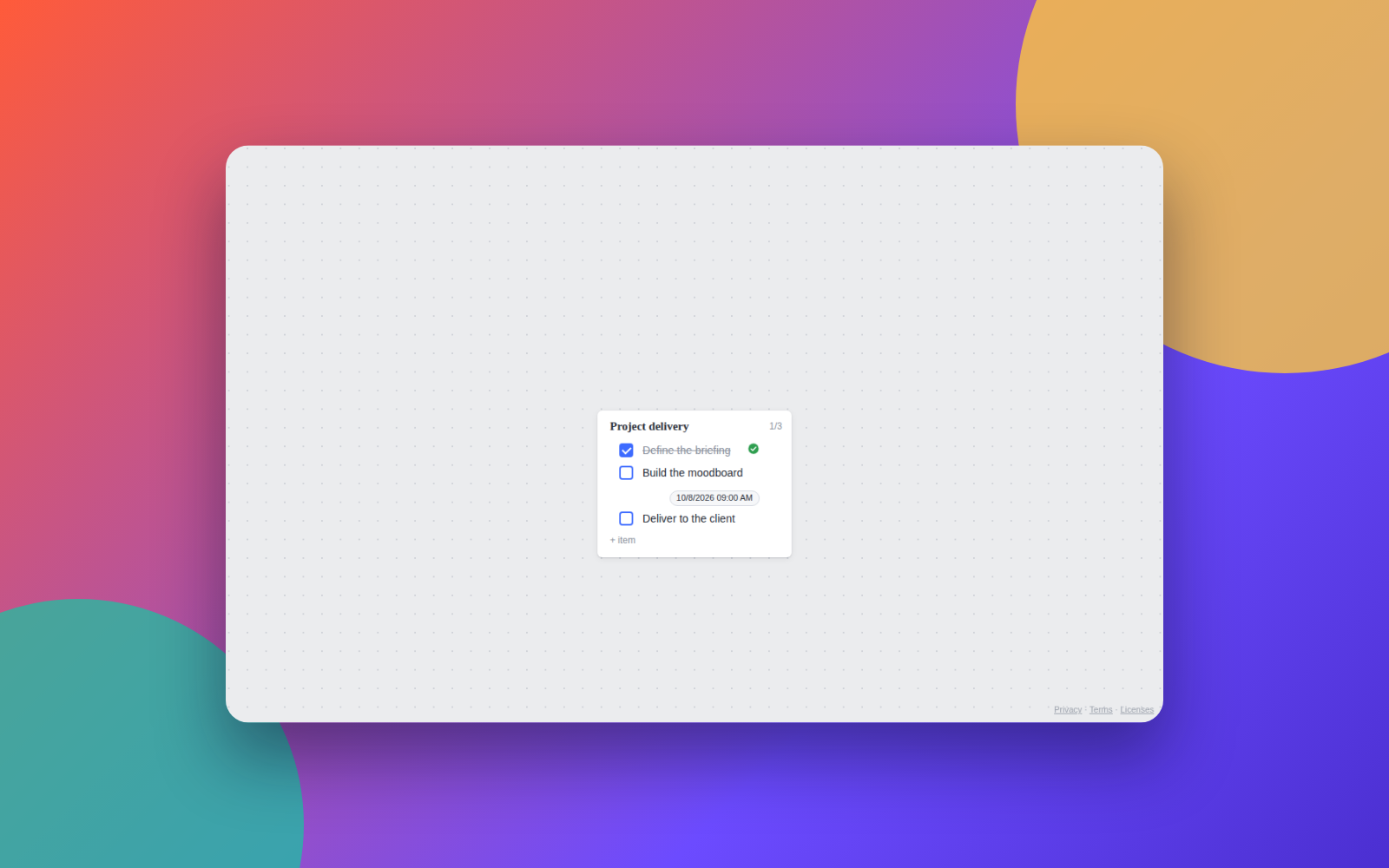
- read notes, links, to-do lists, tables and comments;
- search for a topic across all your boards;
- look at the images on a board, which is great for moodboards;
- create notes, links, lists and tables, many at once and already well placed;
- edit, move and delete cards, and connect one card to another with arrows;
- create new boards and upload images and files.
How to connect
Claude (website and app)
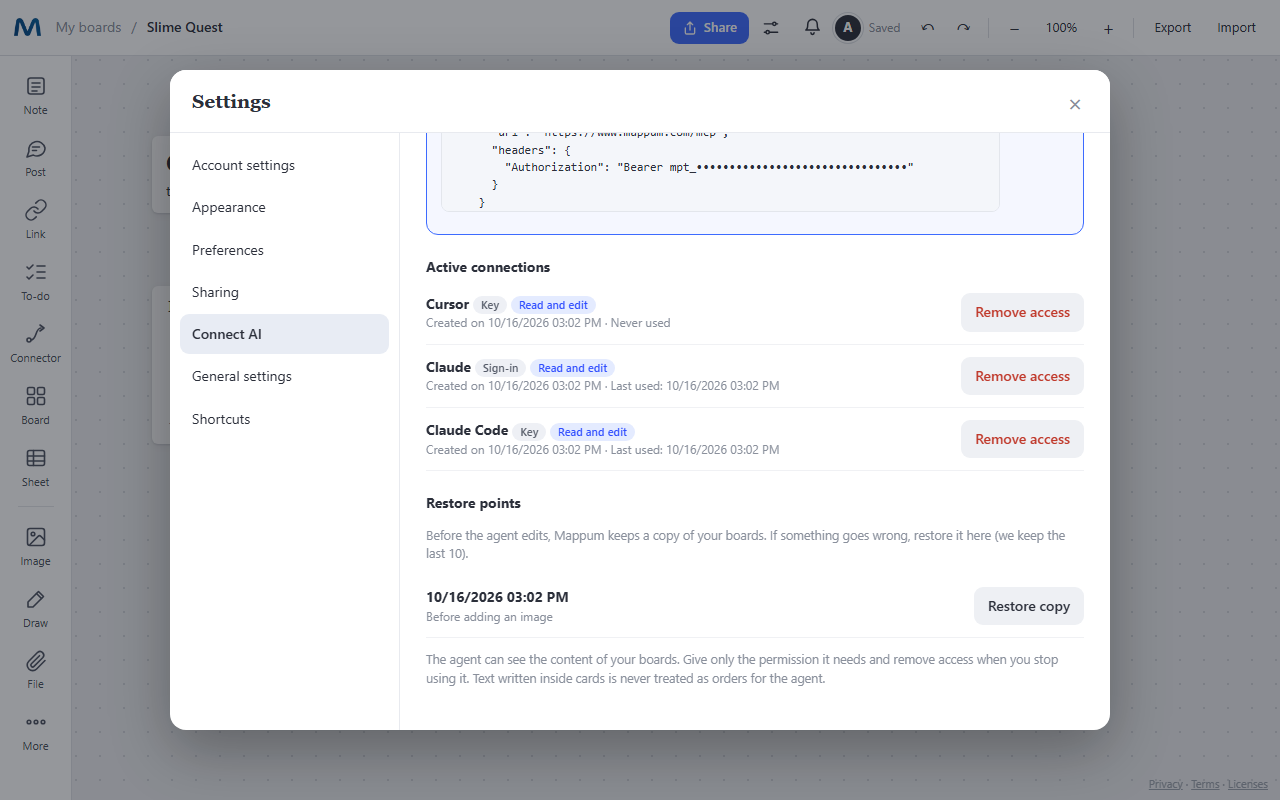
This is the simplest way, with no keys to copy. In Mappum, open your account menu, go to Settings → Connect AI and copy the MCP server address.
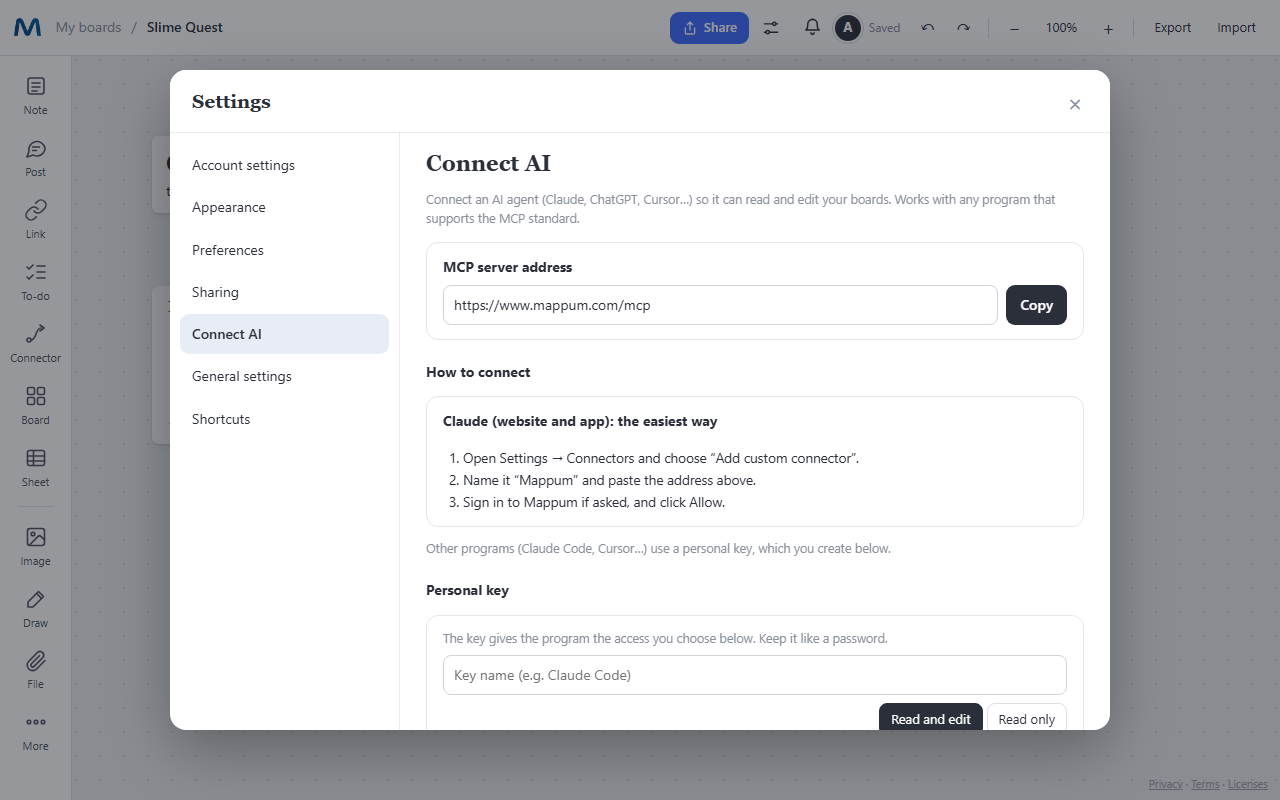
- In Claude, open Settings → Connectors and choose Add custom connector.
- Name it Mappum, paste the server address and confirm.
- Mappum opens an authorization screen. Sign in if asked, choose Read and edit or Read only, and click Allow.
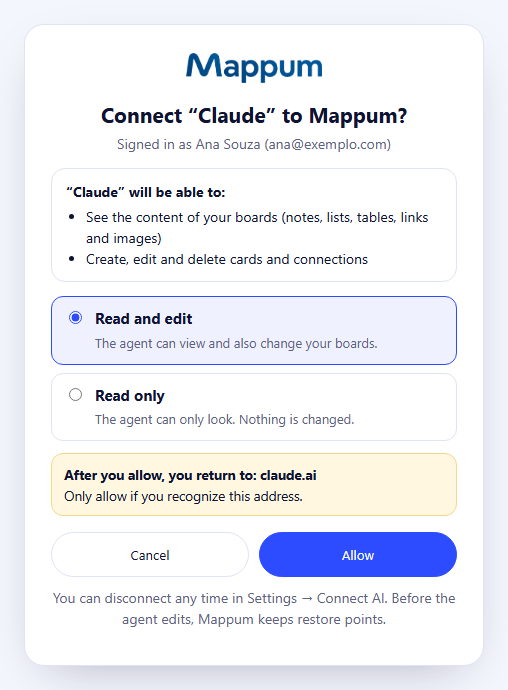
Custom connectors depend on your Claude plan. If the option does not show up, check the Claude documentation.
Claude Code
In Settings → Connect AI, create a personal key. It is shown only once, together with ready-to-copy commands. In your terminal, run a command in this format:
claude mcp add --transport http mappum https://www.mappum.com/mcp --header "Authorization: Bearer YOUR_KEY"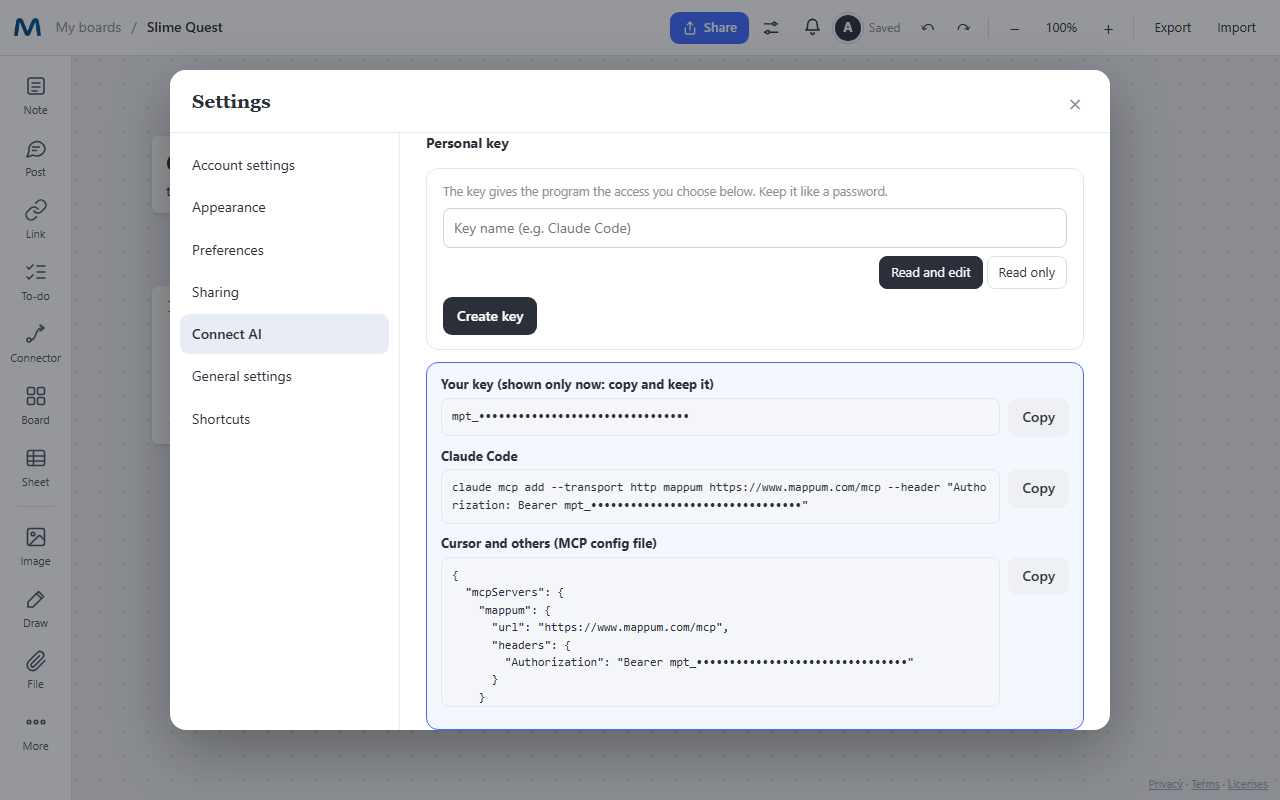
Cursor and other apps
Apps that support remote MCP servers use the same address and the personal key. Usually you just paste this snippet into the MCP config file:
{ "mcpServers": { "mappum": { "url": "https://www.mappum.com/mcp", "headers": { "Authorization": "Bearer YOUR_KEY" } } } }If the app signs in through the browser (OAuth), the address alone is enough, as with Claude.
Permissions and safety
- Read or edit: each connection has its own permission. With Read only, the AI just looks and nothing changes.
- Restore points: before the AI edits, Mappum keeps a copy of your boards (the last 10). If something goes wrong, restore it in Settings → Connect AI.
- Revoke any time: when you remove an access, it stops working immediately.
- Safety limits: the AI cannot delete whole boards and never receives the password of protected boards.
- Mind what the AI reads: text inside cards is just data, not orders. Still, avoid asking the AI to process text from unknown sources while editing permission is on.
Available tools
Reading: list_boards (lists your boards), get_board (a board's cards and connections), get_card (one full card), search (search everything) and get_image (shows an image to the AI).
Editing: create_cards, update_card, delete_card, connect_cards, disconnect_cards, create_board, add_image and prepare_upload (uploading images and files).
Using it with Claude: examples
1. Turn a conversation into a board
Ask: “Create a board called Autumn campaign in my Mappum with the ideas we discussed, one note per idea.” The AI creates the board and the notes, already organized.
2. Read and summarize
“Read the Autumn campaign board and tell me what is still undefined.” Because the AI really reads the board, the answer comes from your material, not from a guess.
3. Organize and edit
“In the Next steps list, check off what is done and add three tasks for the color review.”
4. Send material from a project
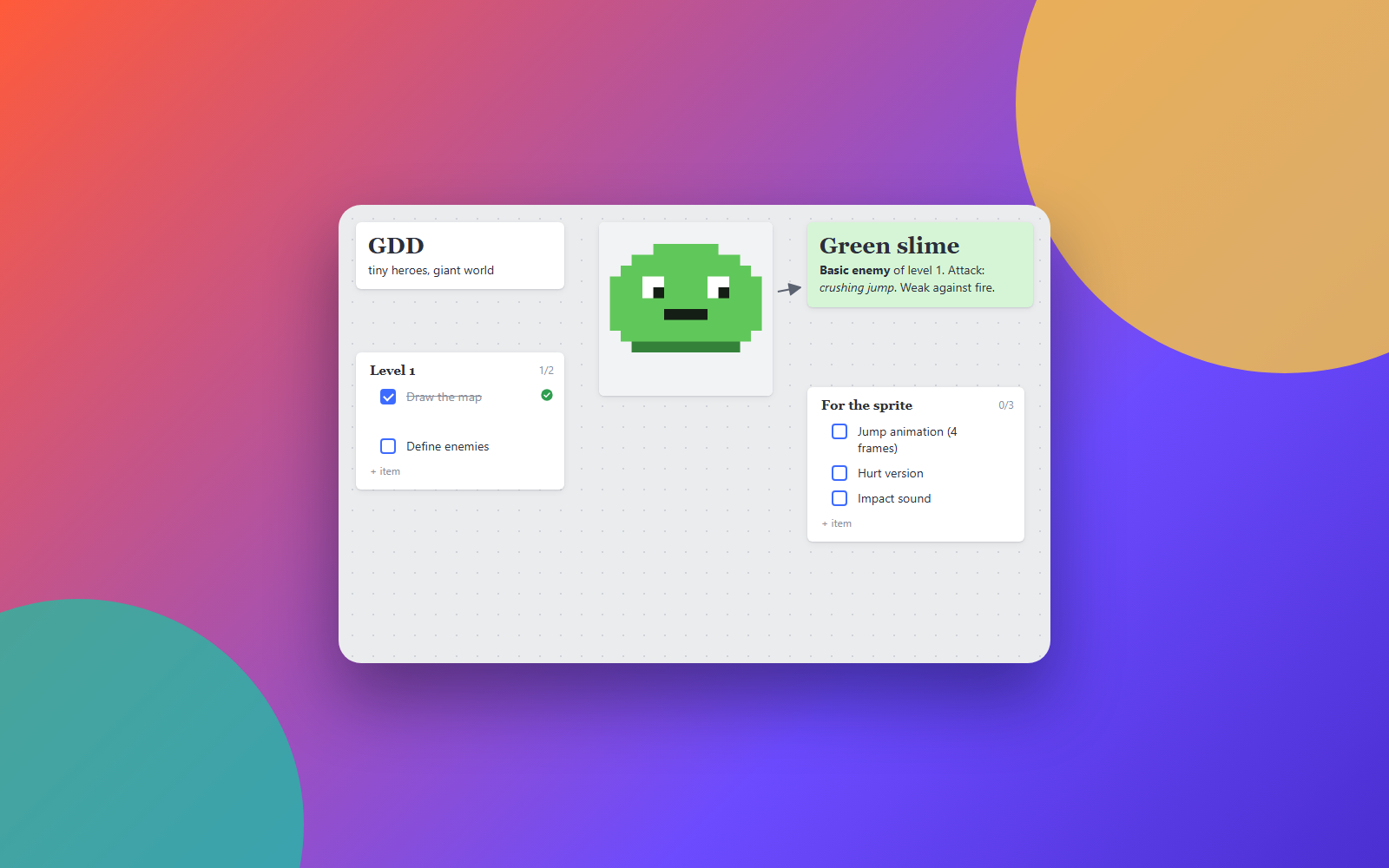
In Claude Code, inside a game project, the AI can offer: “Do you want me to add this new sprite and the concept to your Mappum?” You say yes, it sends the image and the text, and everything shows up on the board within seconds.
Quick questions
Do I need a paid plan? No. Your plan limits (cards and files) also apply to what the AI creates.
Does the board update by itself? Yes. If the board is open, the AI's changes appear within a few seconds, with no page reload.
Can the AI see other people's boards? No. For now it only reaches the boards of your own account, not those other people shared with you.
Ready to try it? Open Mappum, go to Settings → Connect AI and connect your AI in a minute.