How to Export a Mappum Board as PDF, PNG or JPG
Take your board out of Mappum as a PDF, PNG or JPG, with the quality and background you choose. Tutorial with screenshots.

Need to show the board to a client, drop it into a presentation or keep a copy? Mappum exports the whole board in a few clicks.
Available formats
- PDF: good for sending, printing or archiving.
- PNG: a sharp image, with an option for a transparent background.
- JPG: an image with a smaller file, ideal for sending in a message.
Step 1: open the Share menu
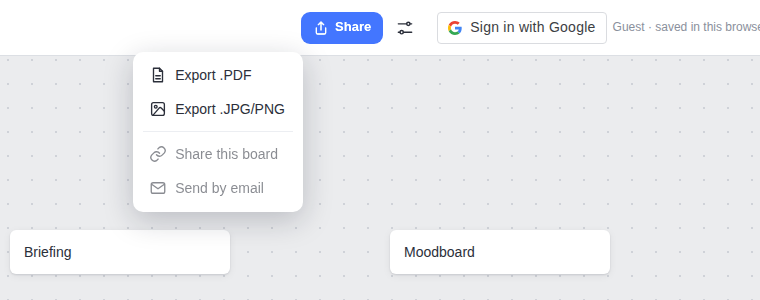
At the top of the screen, click Share. The menu shows the options Export .PDF and Export .JPG/PNG.
Step 2: choose the format and quality
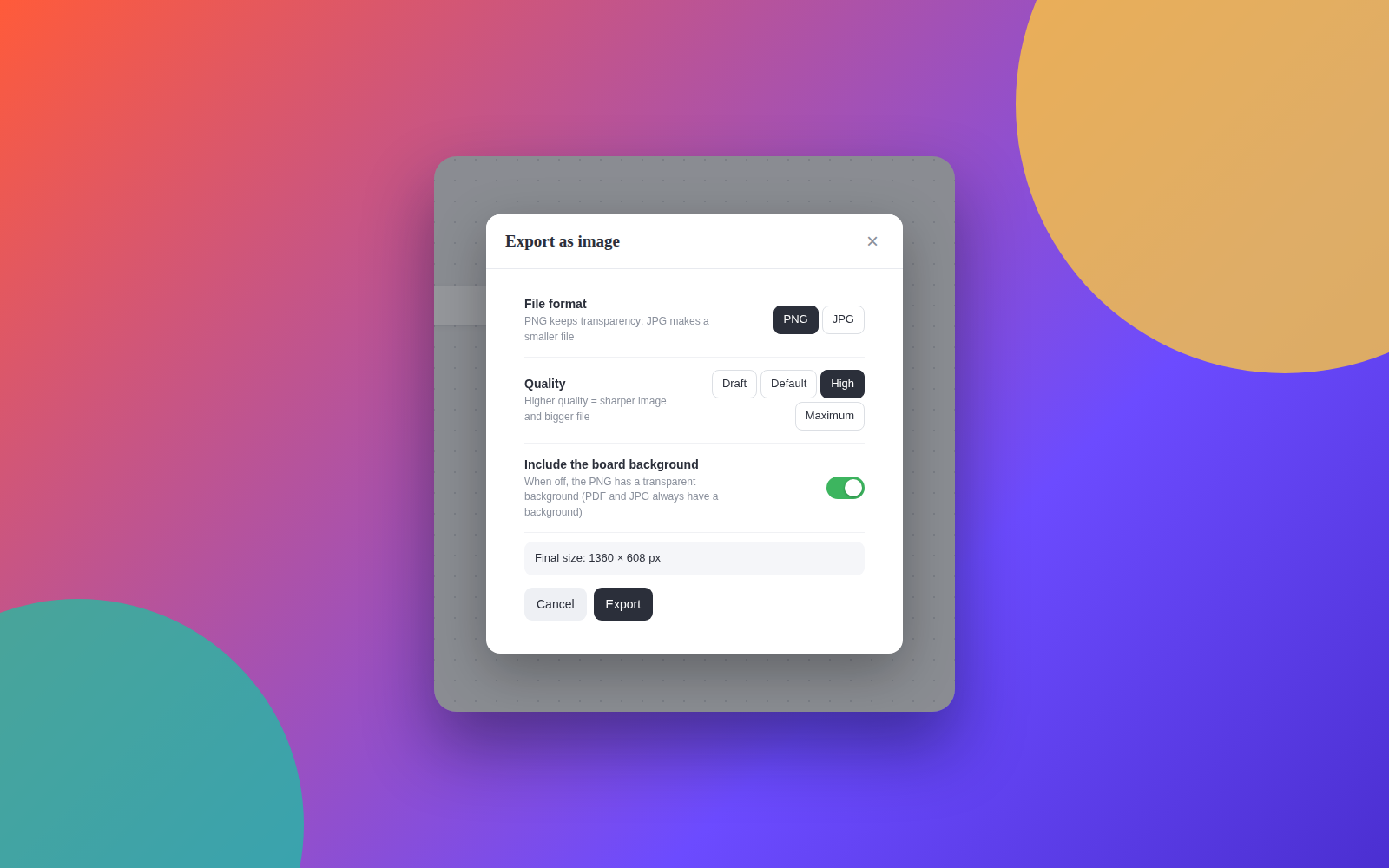
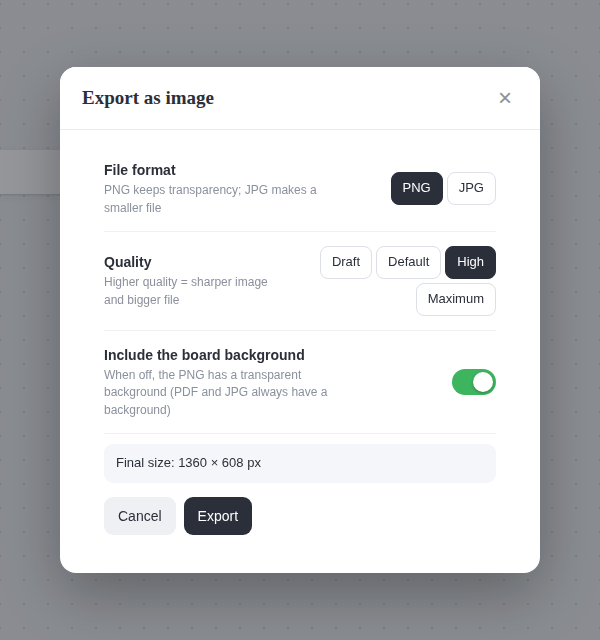
When you choose Export .JPG/PNG, a window opens with these choices:
- File format: PNG (keeps transparency) or JPG (smaller file).
- Quality: the higher it is, the sharper the image and the bigger the file.
- Include the board background: when off, the PNG comes out with a transparent background. PDF and JPG always have a background.
The window shows the final size of the image in pixels before you export.
Step 3: click Export
Click the Export button. The file is generated and downloaded with the board's name, and a message confirms the file name.
Tip: for a PNG with a transparent background, turn off Include the board background. It is great for placing the map over slides or over your website.
More ways to share
In the same menu, when signed in, you will also find Share this board (a link to invite people, with roles such as editor, reviewer and viewer) and Send by email, which opens your own email already filled in.
Quick questions
Does it export the whole board or only what is on screen?
The whole board, with every item, even the ones outside the visible area.
Do I need an account?
To export, no: continue as a guest at mappum.com/app. The sharing link and email need an account.