How to Group Items in Mappum and Hide Everything with One Arrow
Gather several board items into a single card and hide or show them all with one arrow, keeping the board clean. Tutorial with screenshots.

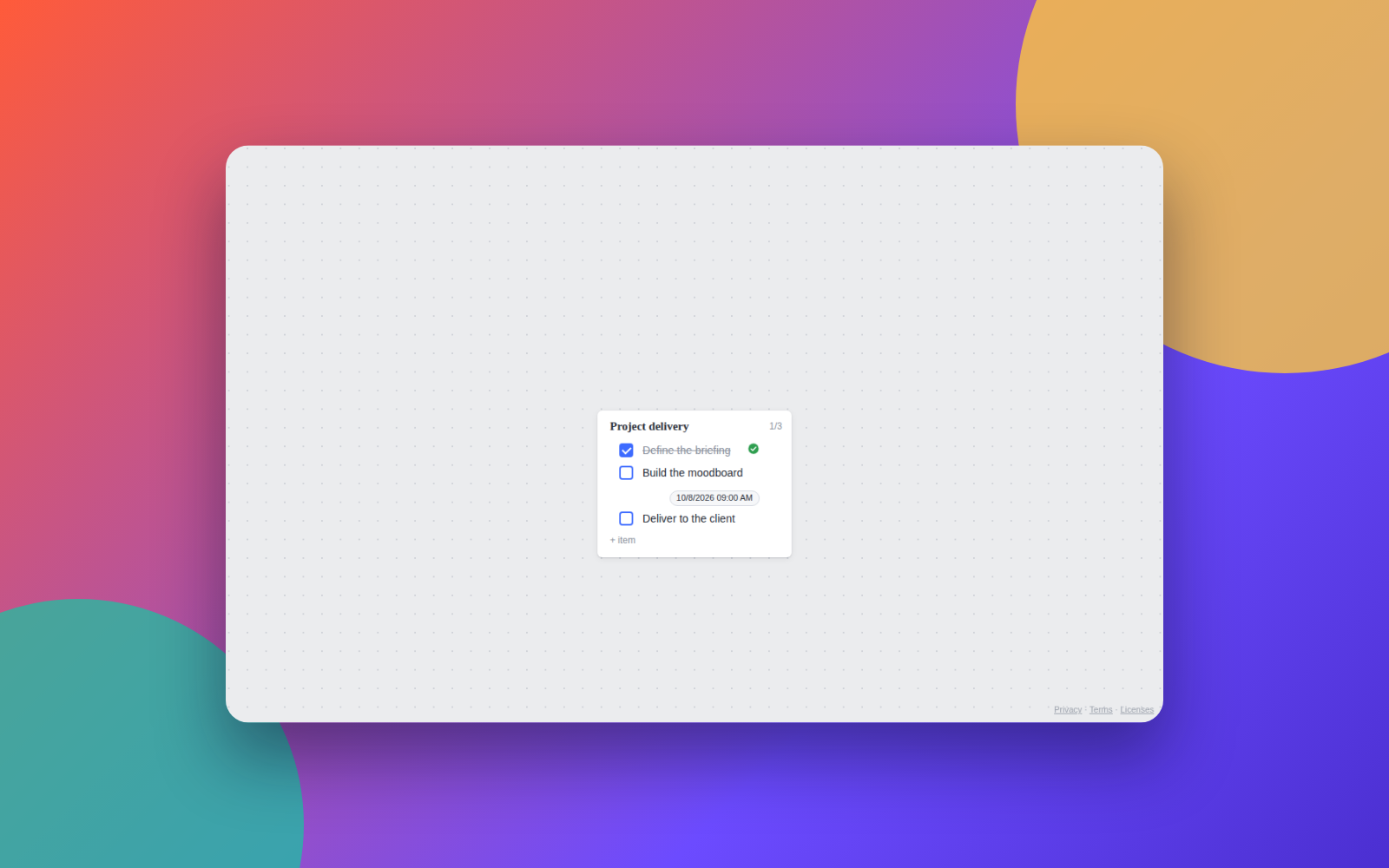
Big boards fill up fast. Mappum's grouping gathers several items into a single card that you open and close with an arrow, without moving anything.
When to use groups
Use groups to hide what you don't need to see right now: references from a finished phase, drafts, support notes or all the material for one client. The board stays light and, when you open the group, everything comes back to exactly the same position.
Step 1: select the items
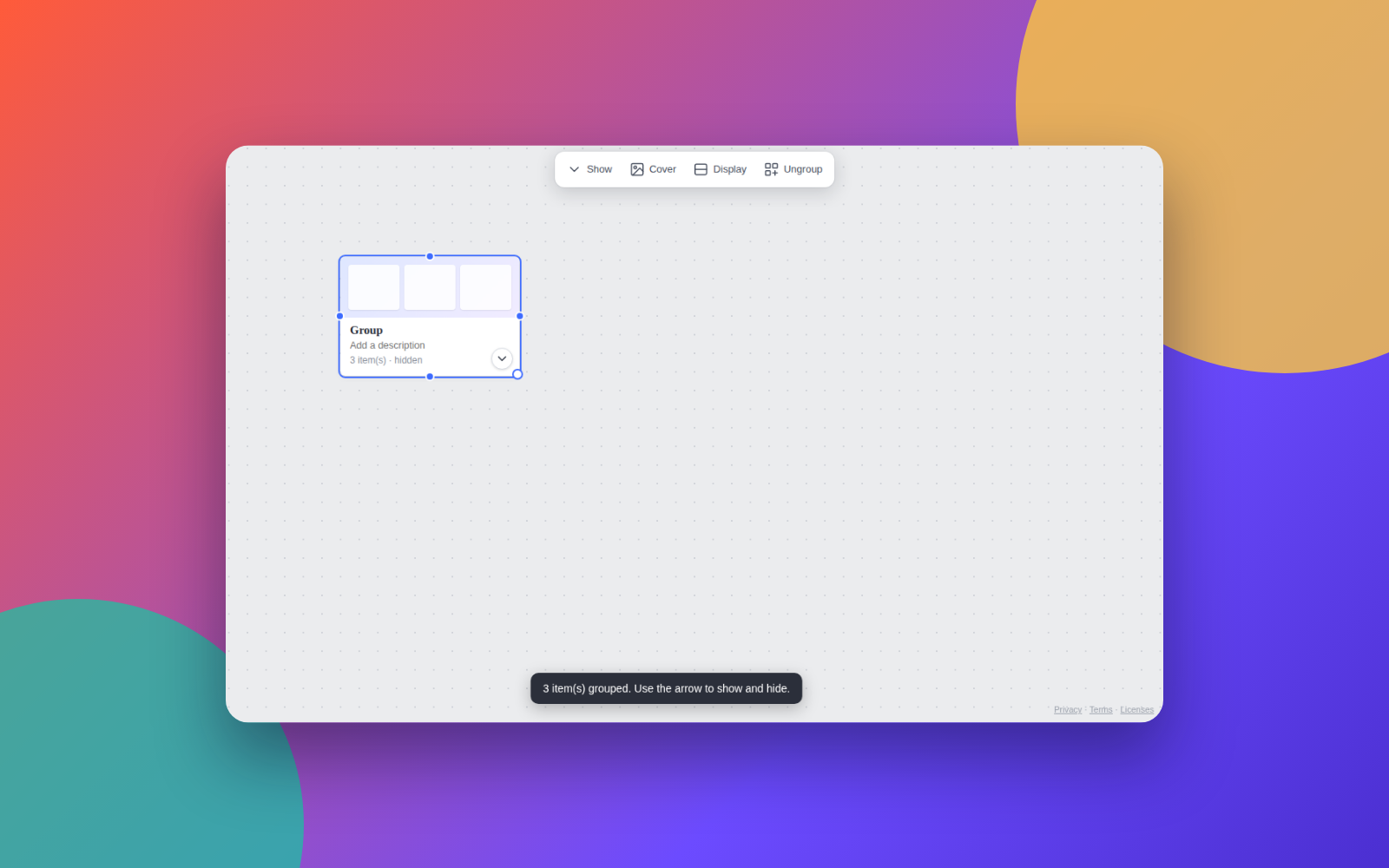
Click an empty area of the board and press Ctrl+A to select everything, or drag a rectangle over the items you want to group. Selected items get a blue outline.
Step 2: right-click and choose Group
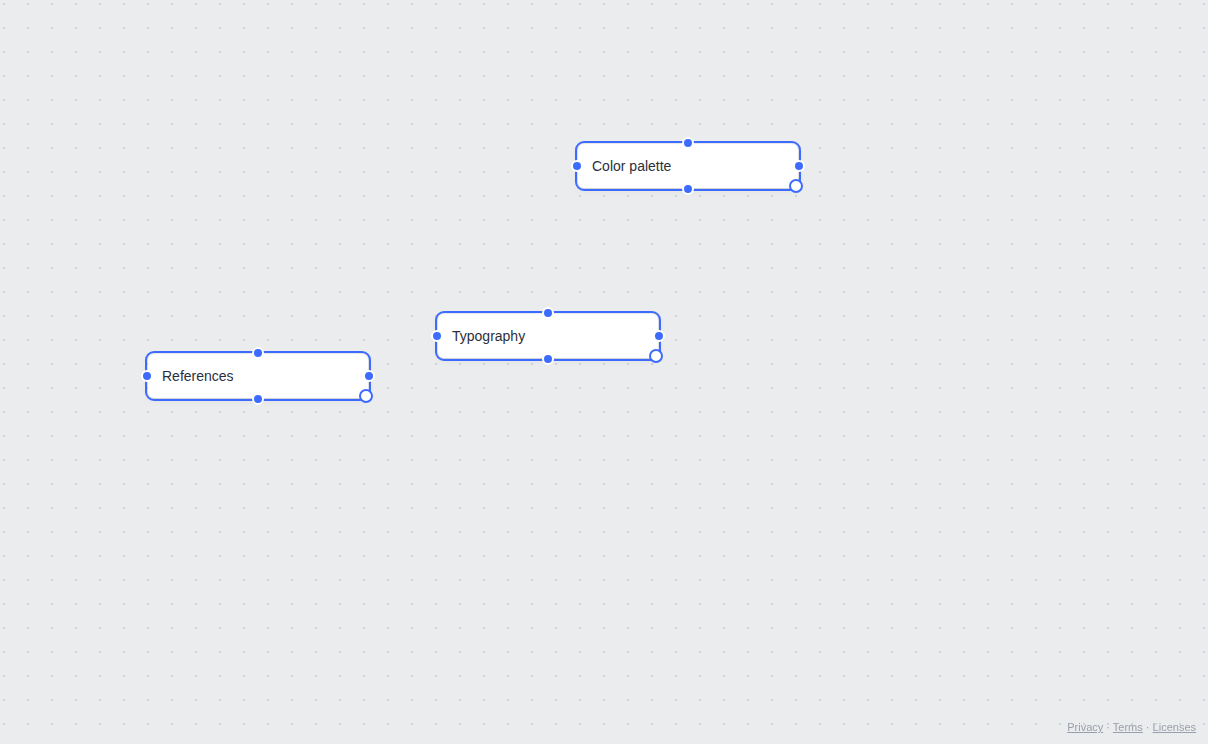
With the items selected, right-click one of them. In the menu, choose Group.
Step 3: the group appears closed
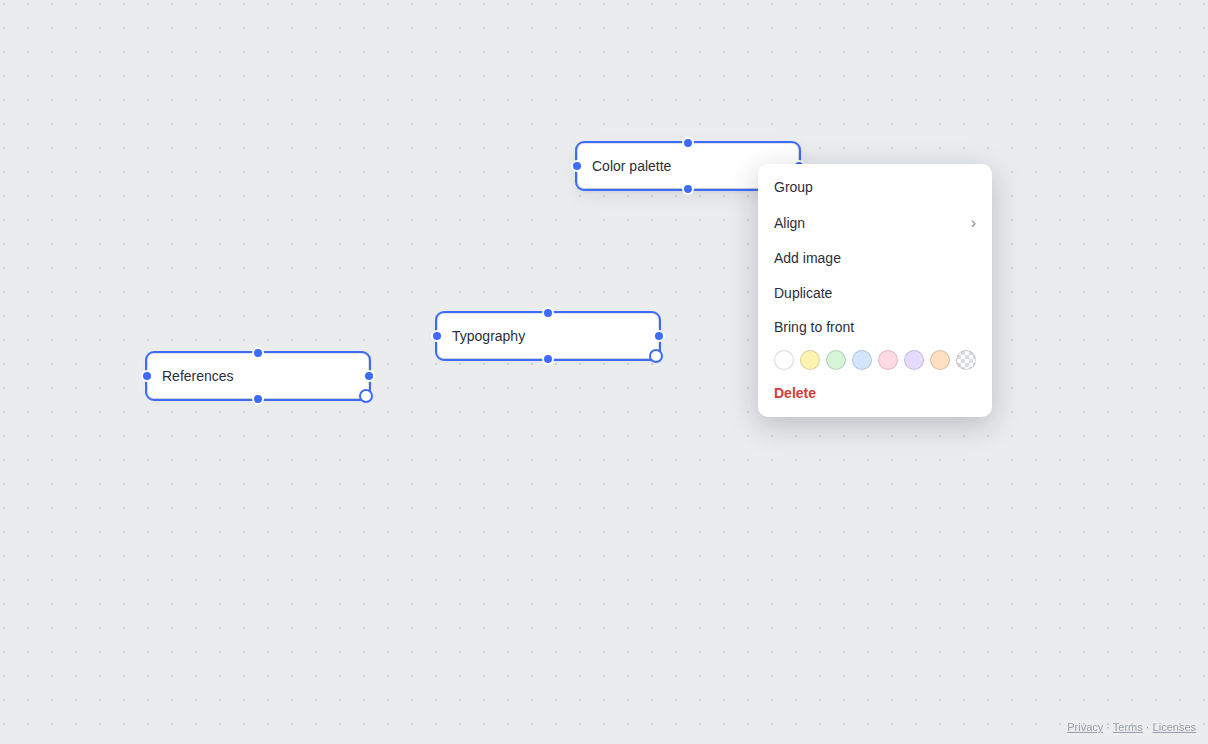
The items disappear from the board and a group card takes their place, named Group (you can rename it), showing the number of items and the state hidden. A message confirms how many items were grouped.
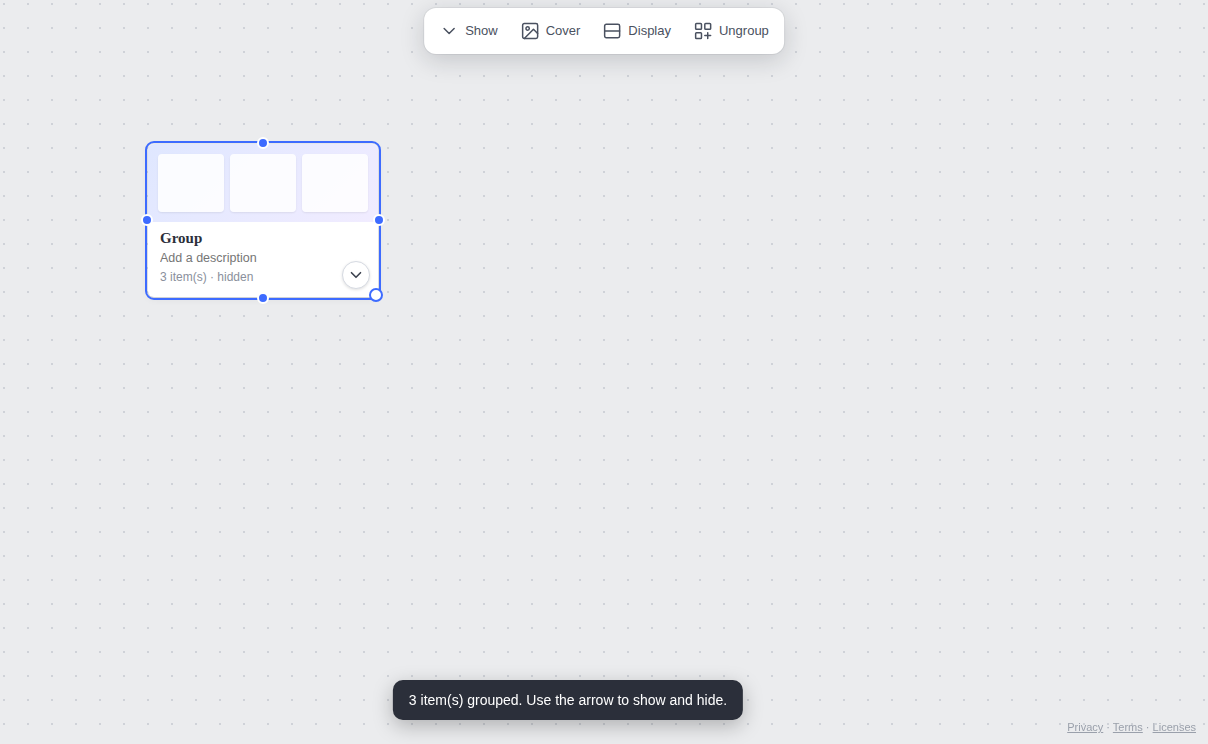
The group also accepts drag and drop: drop other items on top of it and they join the group.
Step 4: show the items again
Click the arrow on the group card. The items reappear in the same positions they were in, with a dotted outline showing they belong to the open group. Click the arrow again to hide them.
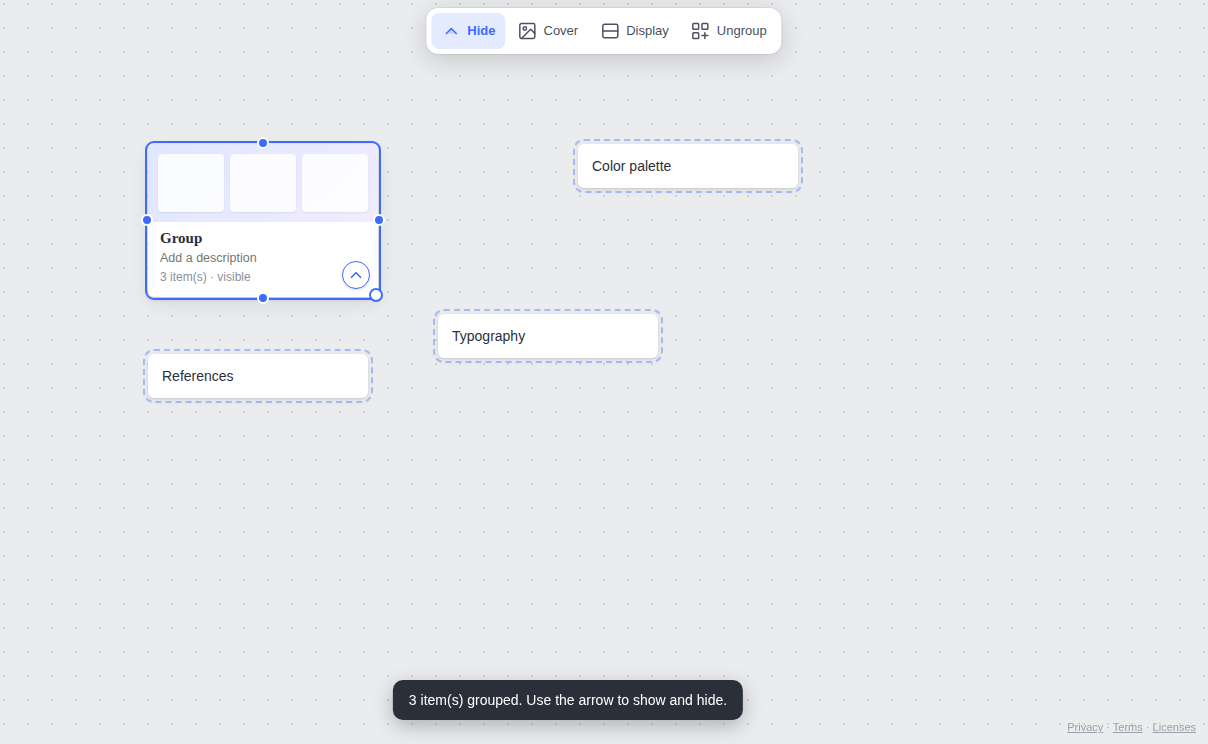
More group options
- Rename and describe: click the card's name or description and type.
- Ungroup: right-click the group and choose Ungroup to release the items back onto the board.
- Take an item out of the group: with the group open, select the item and use Remove from group in the right-click menu.
- Cover and display: with the group selected, the top bar lets you pick a cover image and choose what the card shows.
Tip: use one group per project phase (briefing, references, deliverables). Closing the finished ones keeps your focus on what matters.
Quick questions
Are the grouped items deleted?
No. They stay stored inside the group and return exactly where they were when you open it.
Can I group any type of item?
Yes: notes, images, lists, sheets and the other board items. A group, however, cannot go inside another group.
Do I need an account?
Not to try it: continue as a guest at mappum.com/app. A guest board is temporary; sign in with Google or email to keep your work.