How to Align and Arrange Items in Mappum in Seconds
Select several items and align, distribute or arrange them in a grid with one click. Tutorial with screenshots of the Mappum alignment options.

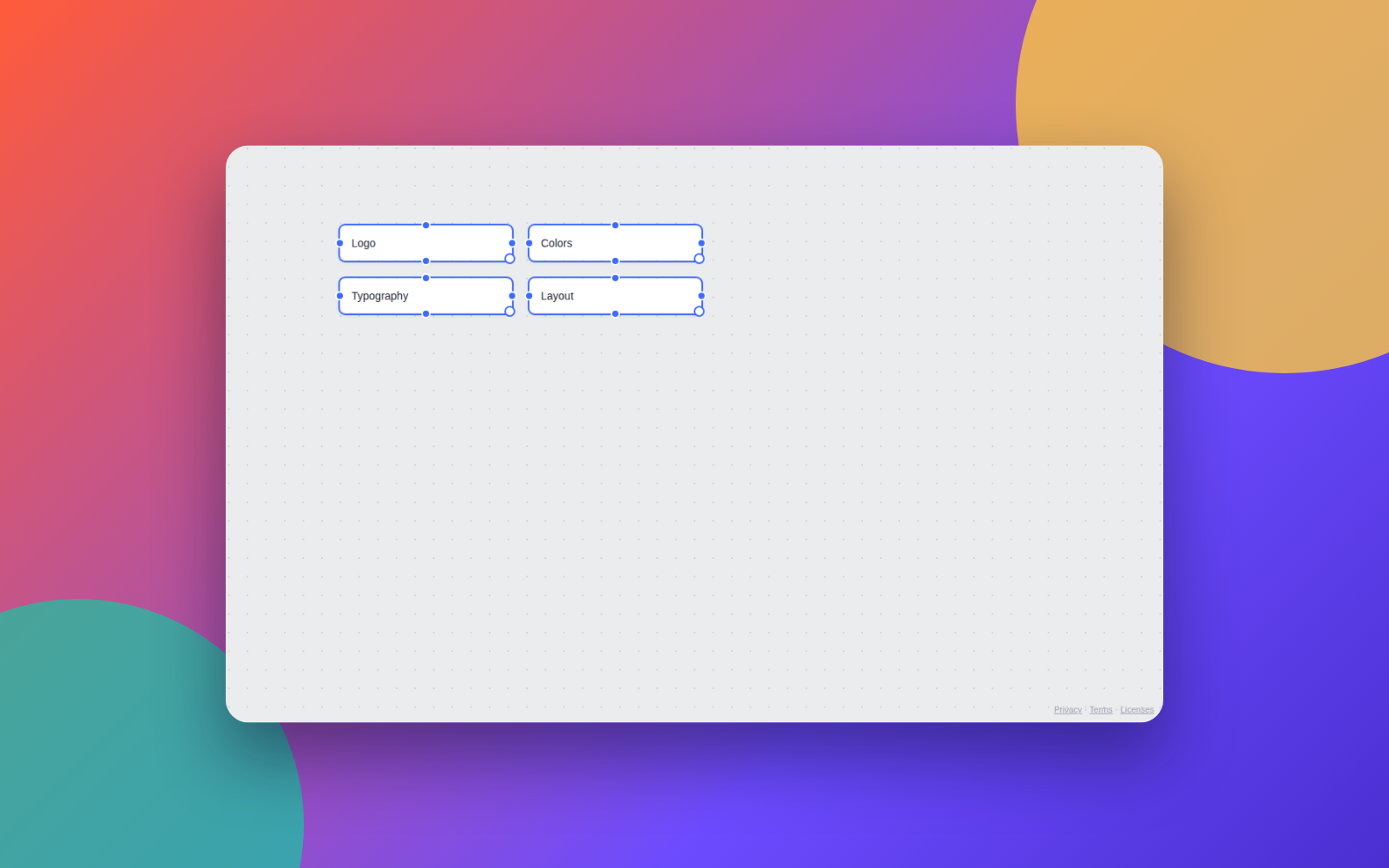
A messy board gets in the way of thinking. Instead of moving items one by one, select them all and ask Mappum to align them.
What you can do
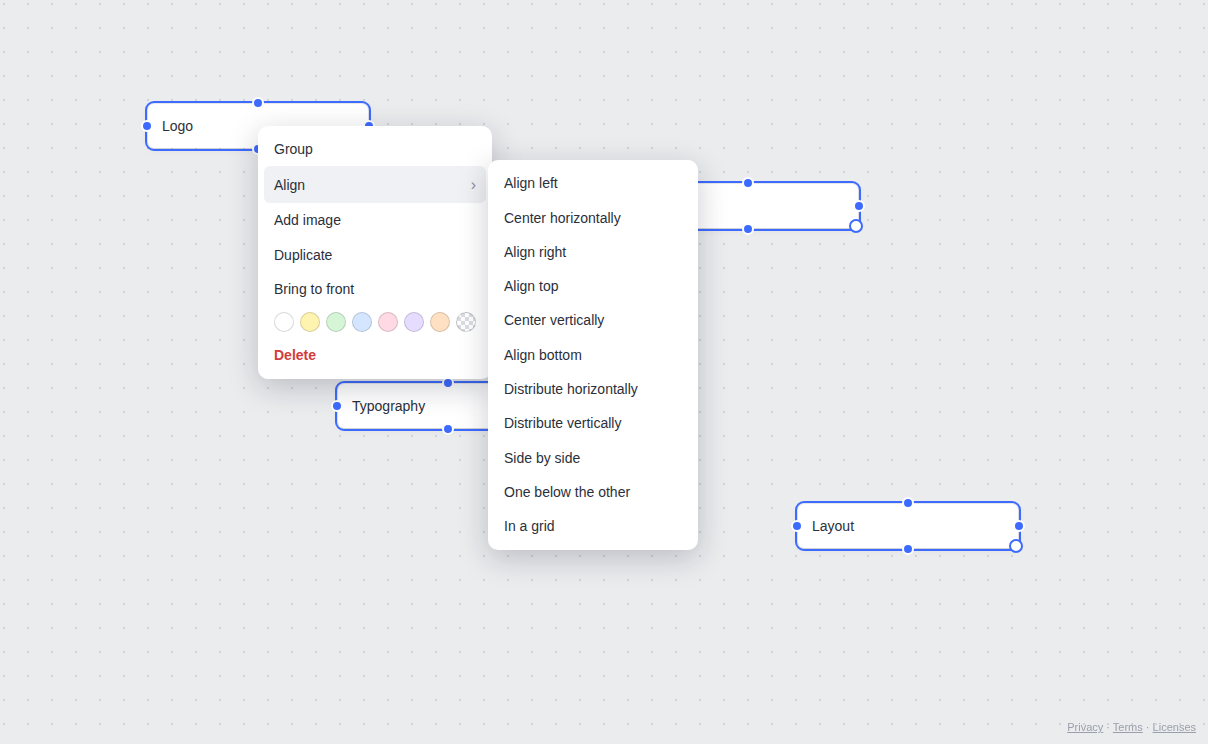
In the right-click menu, the Align option opens these choices:
- Align left, right, top or bottom: puts every item on the same reference line.
- Center horizontally or vertically: lines up the centers of the items.
- Distribute horizontally or vertically: spaces the items evenly between the two extremes.
- Side by side and One below the other: arranges the items in a row or in a column.
- In a grid: organizes everything in rows and columns.
Step 1: select the items
Click an empty area and press Ctrl+A to select everything, or drag a rectangle over the items. Here, four notes scattered around the board.
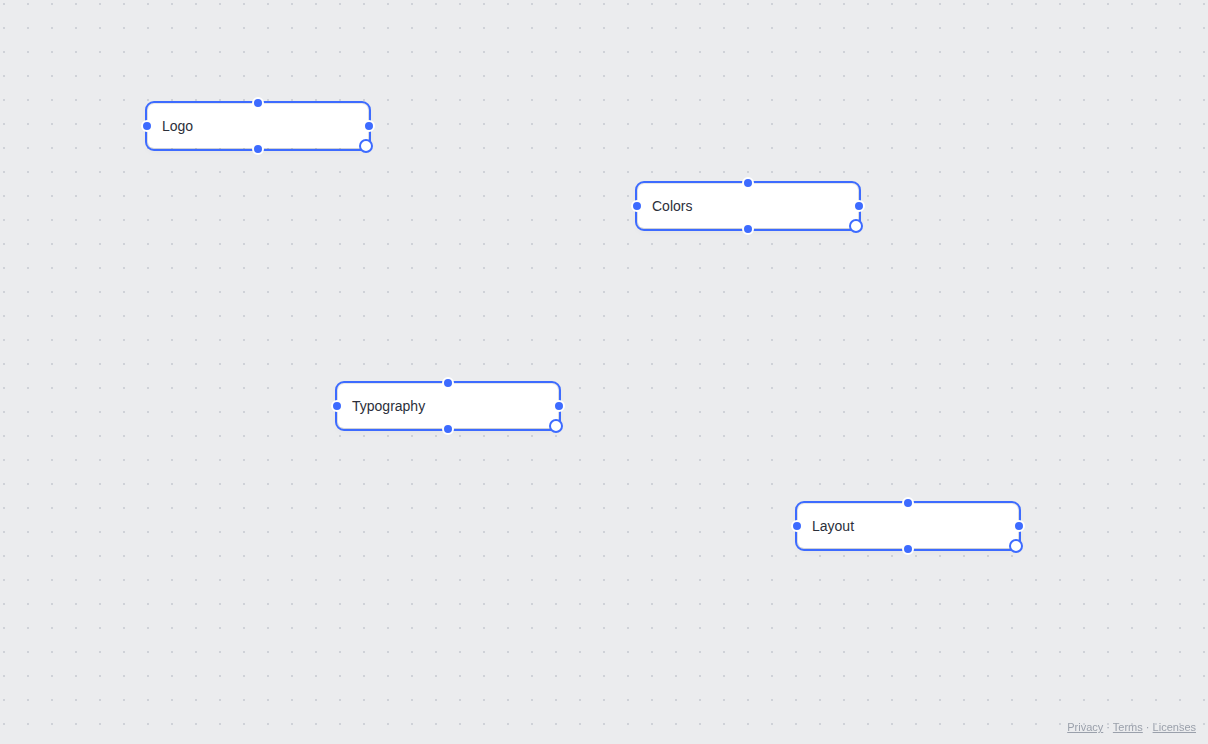
Step 2: right-click and Align
Right-click one of the selected items and hover Align ›. The options open next to the menu.
Step 3: pick an option
Click Align left. The four notes now start on the same vertical line, keeping their heights.

Step 4: arrange in a grid
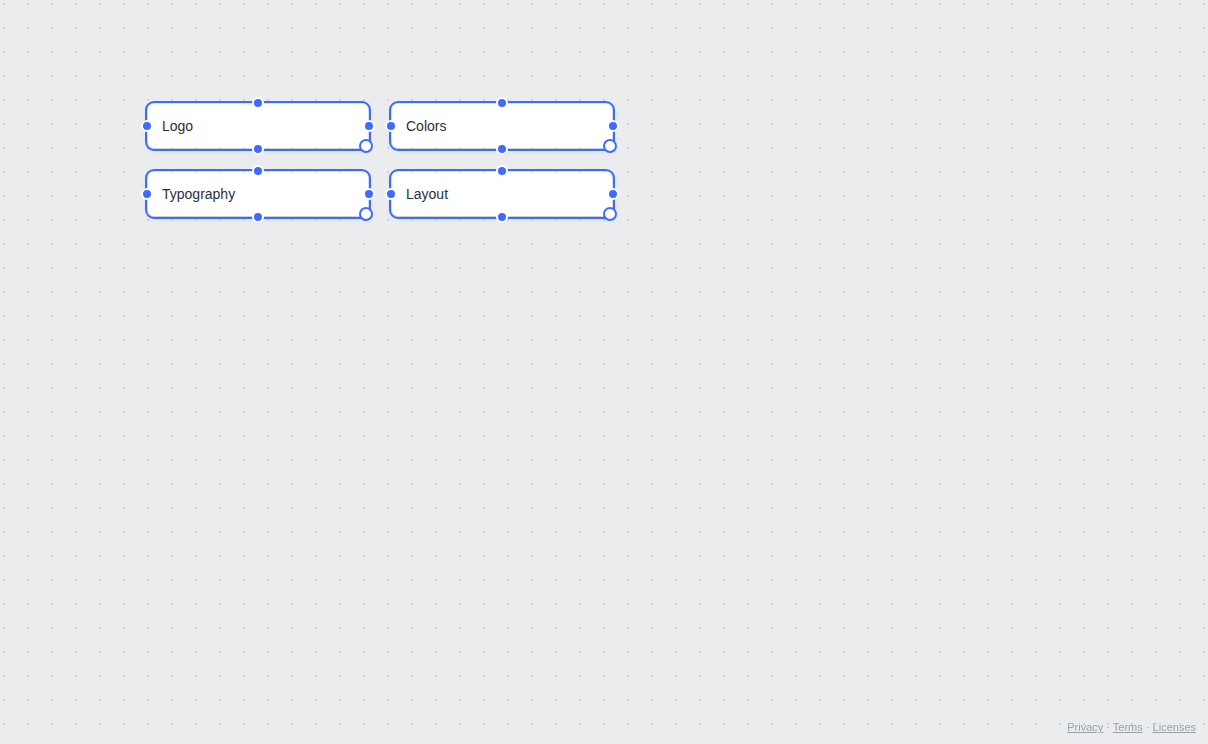
With the items still selected, open the menu again and choose In a grid. Mappum arranges everything in rows and columns with regular spacing.
Tip: made a mistake? Press Ctrl+Z to undo the alignment and try another option.
Quick questions
How many items do I need to select?
Two to align. For Distribute and In a grid, three or more.
What about items inside a closed group?
Items hidden by a group are left out of the alignment. Open the group first if you want to include them.
Do I need an account?
Not to try it: continue as a guest at mappum.com/app. A guest board is temporary; sign in with Google or email to keep your work.